

Step-by-step
1
Filter the rows you want
Open the table on the Data tab and apply filters until the grid shows only the rows you want to export. The export will include exactly those rows.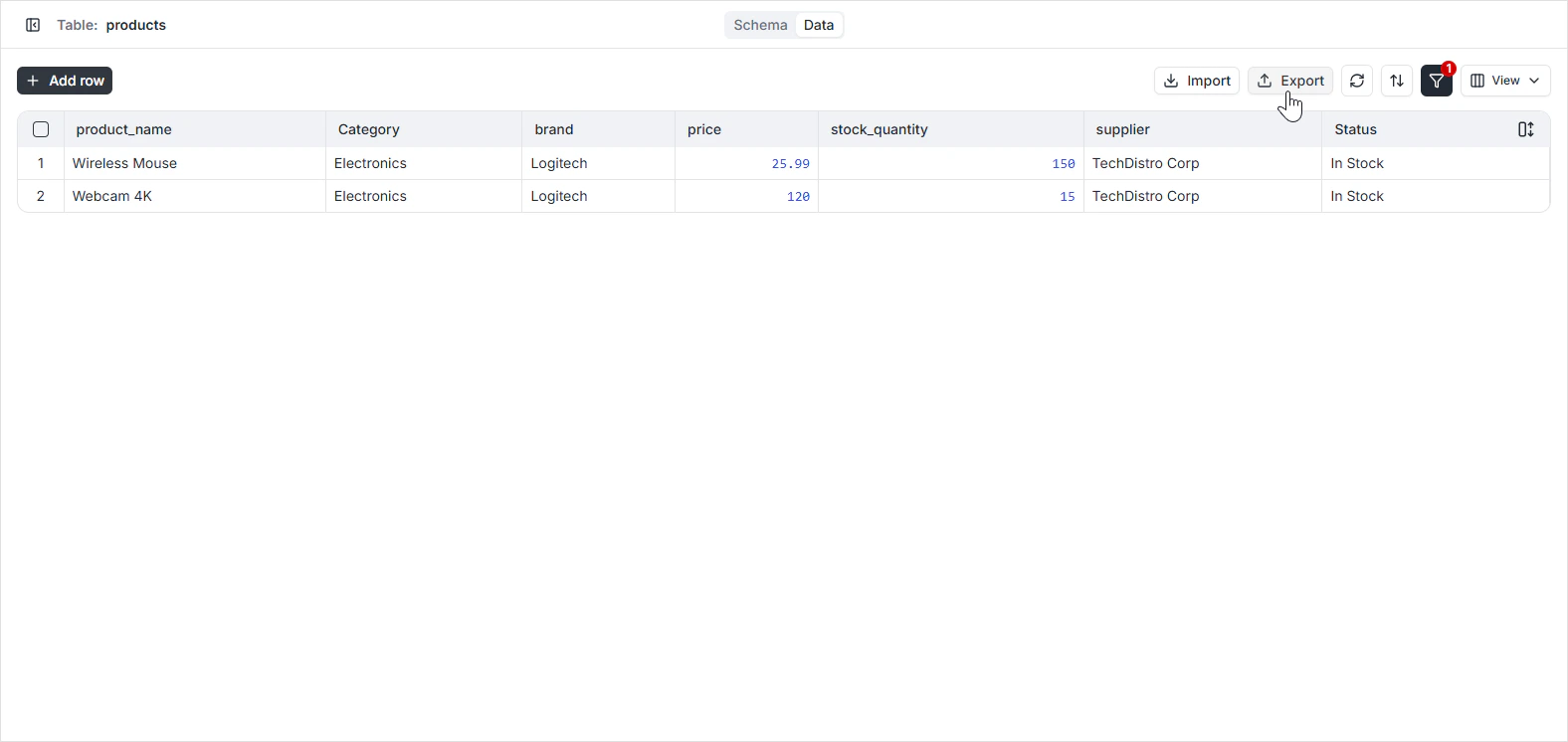
2
Choose which columns to include
Click the View dropdown in the toolbar and toggle off any fields you don’t want in the file. Only the columns currently visible in the grid are included in the export.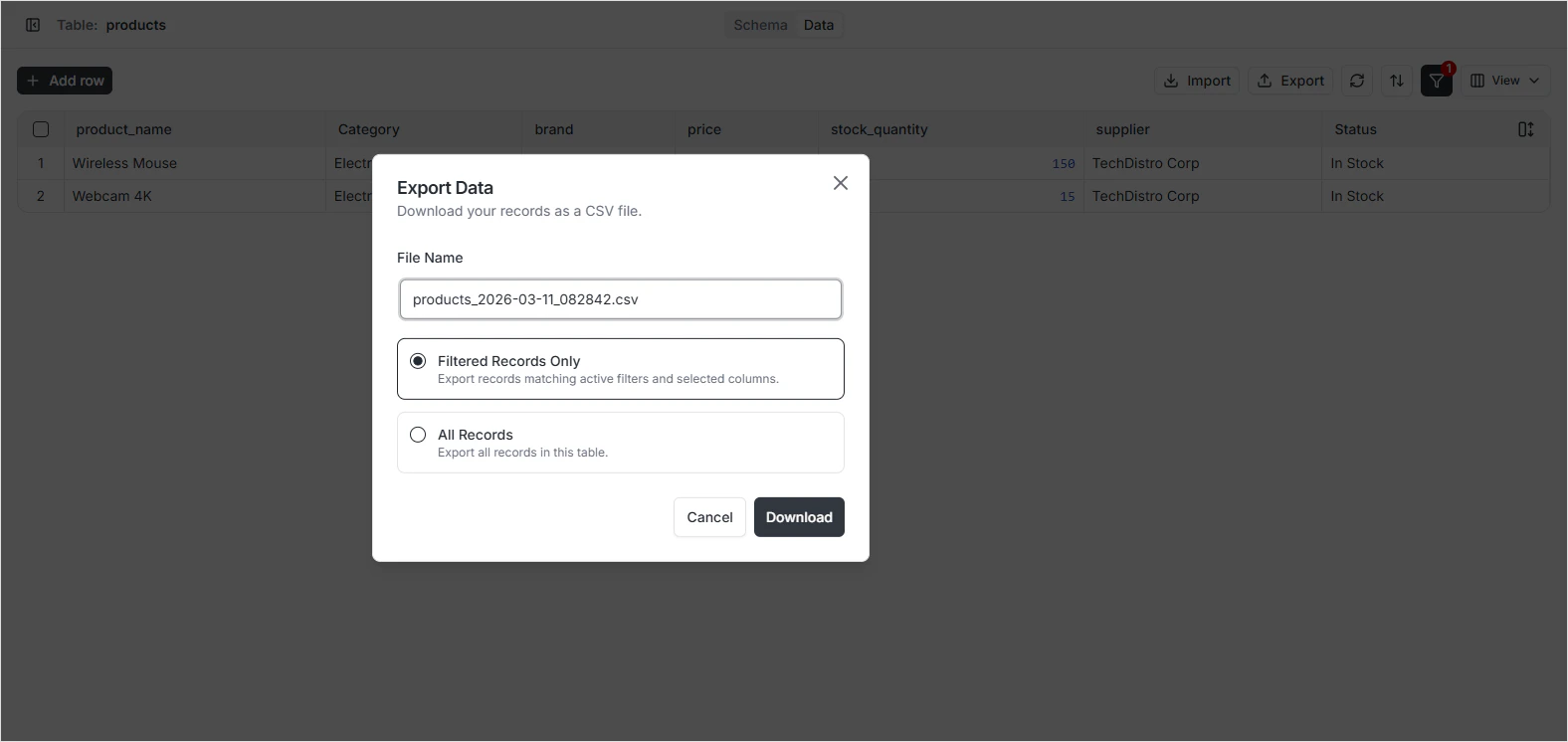
3
Click the Export CSV icon
The icon sits in the toolbar. The browser downloads the CSV file to your machine.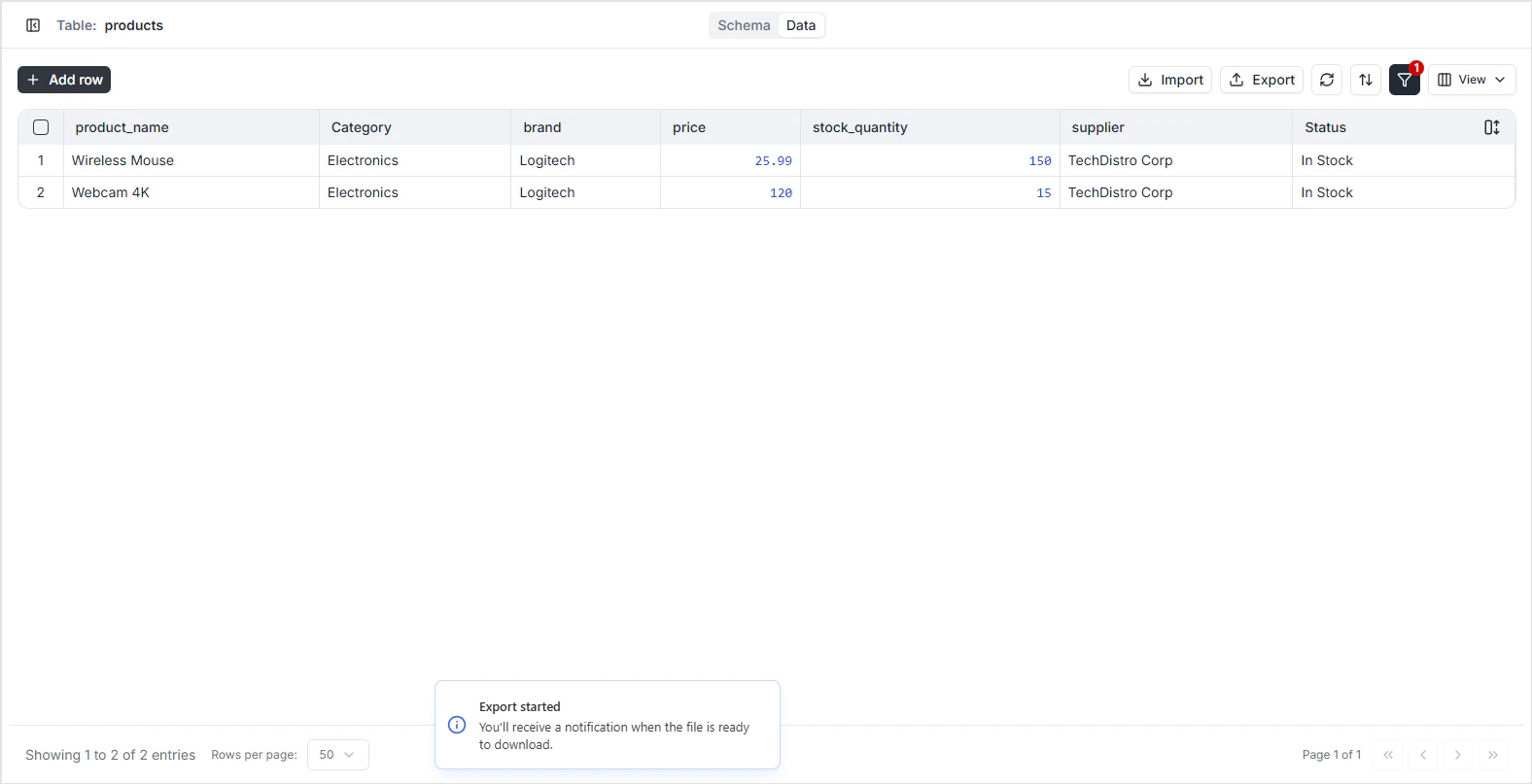
What the file contains
- Header row — the field names of the included columns.
- One row per record — matching the current filtered view.
- Date and timestamp formatting — ISO 8601 (
2025-03-14T10:30:00Zfor timestamps with time zone). - Relationship fields — the primary key of the related row, not the related row’s full content.
- JSONB fields — the JSON value as a quoted string.
Permissions
Exports respect the per-role read permissions configured in Role-Based Access. A user can only export rows and fields they’re allowed to read.FAQ
How do I export only some columns?
How do I export only some columns?
Toggle off the columns you don’t want from the View dropdown. The export uses the visible-column set as its column list.
How do I export only some rows?
How do I export only some rows?
Apply filters in the toolbar before clicking Export. The export includes exactly the rows currently in the grid.
Are there any size limits?
Are there any size limits?
Very large exports may take a while to generate. For multi-million-row exports, consider scripting the dump through a custom function or the SQL Playground.
Are audit columns included?
Are audit columns included?
Only if they’re visible in the grid. Toggle
id, created_at, created_by, updated_at, or updated_by on from the View dropdown if you want them in the file.