

SELECT query. Views don’t store data themselves — every time you query a view, the underlying SQL runs and returns a fresh result set built from the real tables.
In the auto-generated GraphQL API, a view appears as a regular table. Clients query it the same way they query any other table.
When to use a View
If you need to run ad-hoc queries that don’t need to be exposed in the API, use the SQL Playground instead.
Creating a View
1
Open the Data Model sidebar
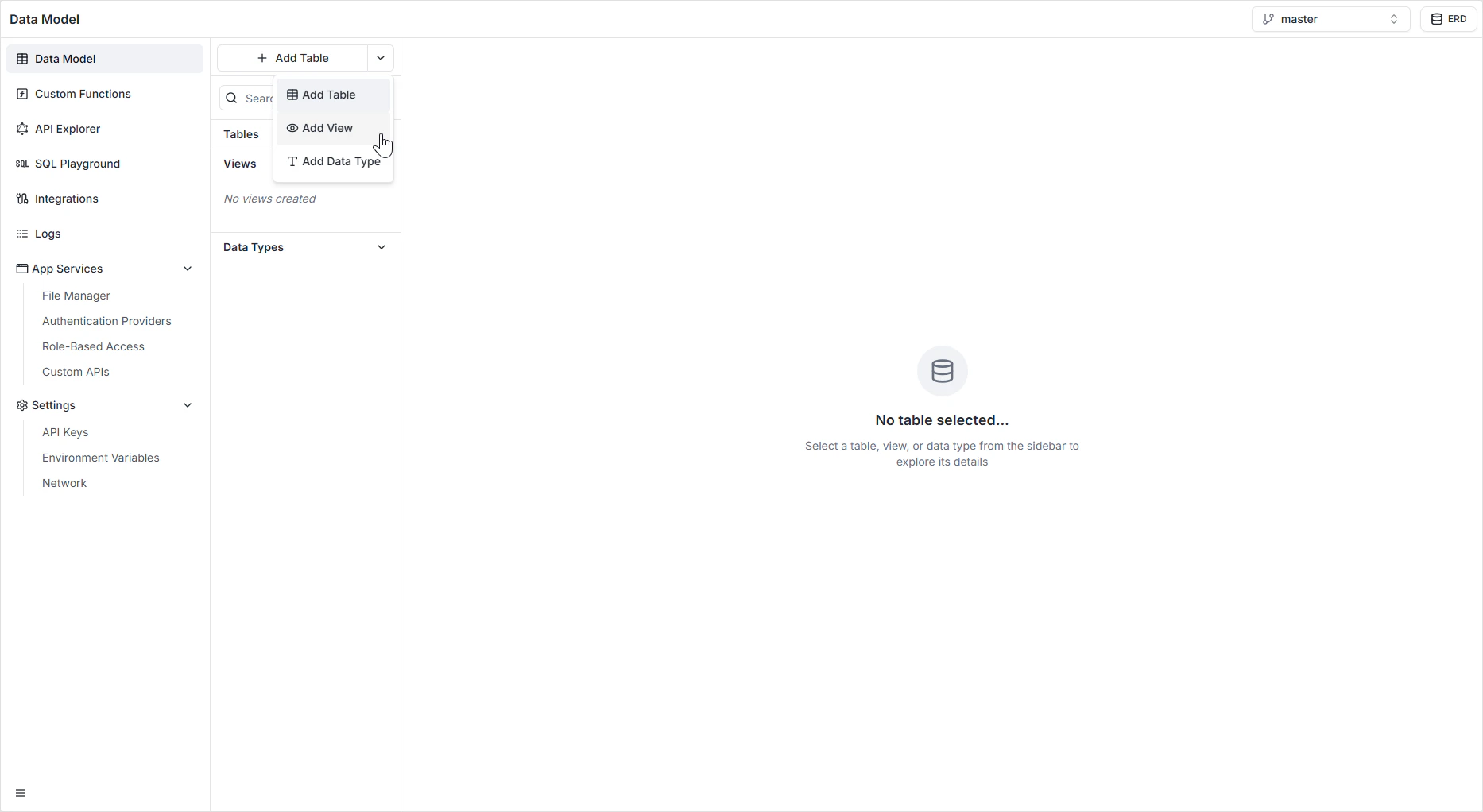
Find the + Add Table button at the top of the sidebar.
2
Open the dropdown
Click the dropdown arrow next to + Add Table.
3
Choose Add View
Select Add View. The view editor opens with an inline SQL playground.
4
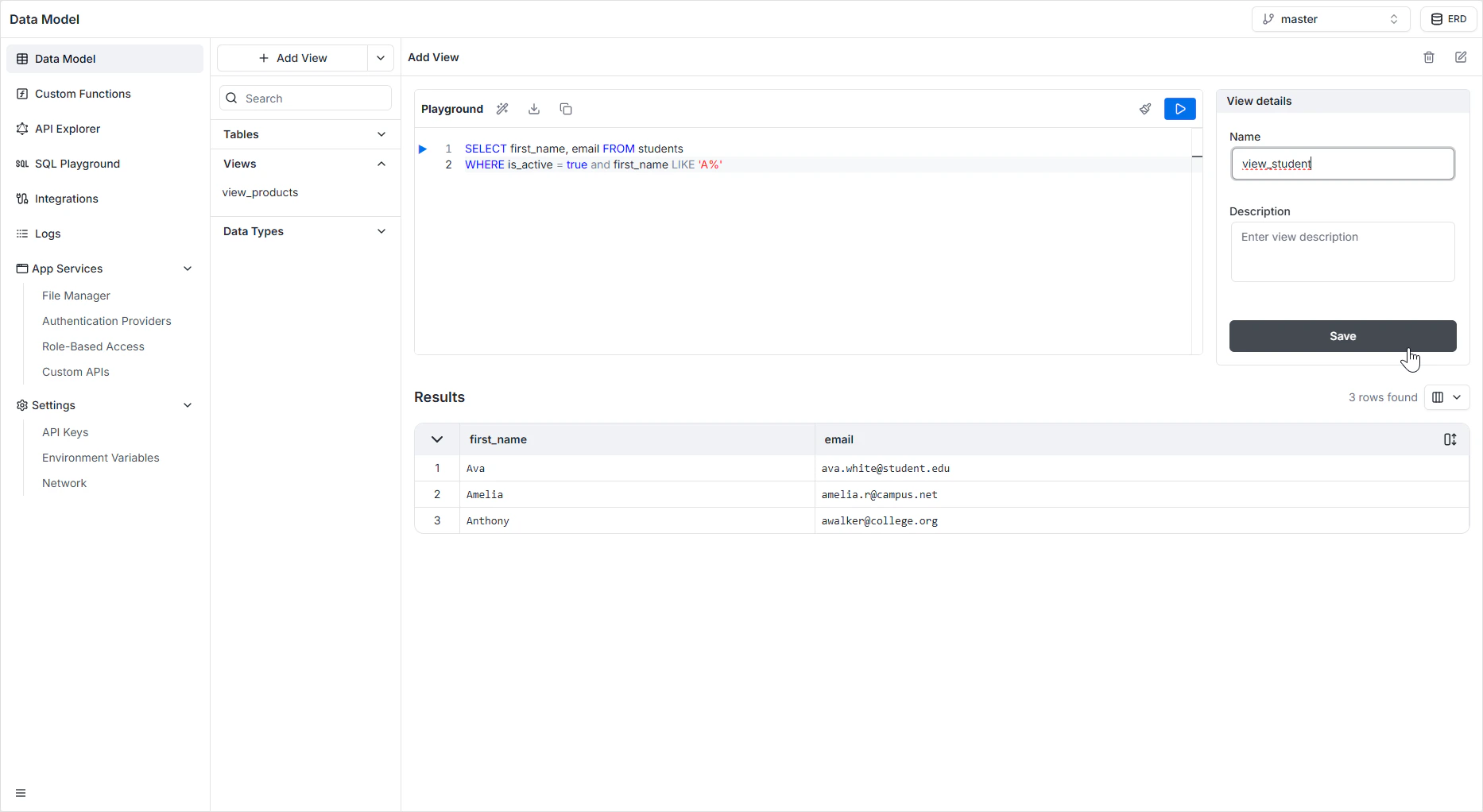
Write the query
Enter a
SELECT statement that returns the columns and rows you want to expose.5
Run the query
Click the Play button (▶) to preview the result set immediately. This catches syntax errors and verifies the shape of the output before saving.
6
Name and describe the view
Enter a unique system identifier (for example
active_students). This name is what the GraphQL API exposes. Add a description so your team knows what the view returns.7
Save
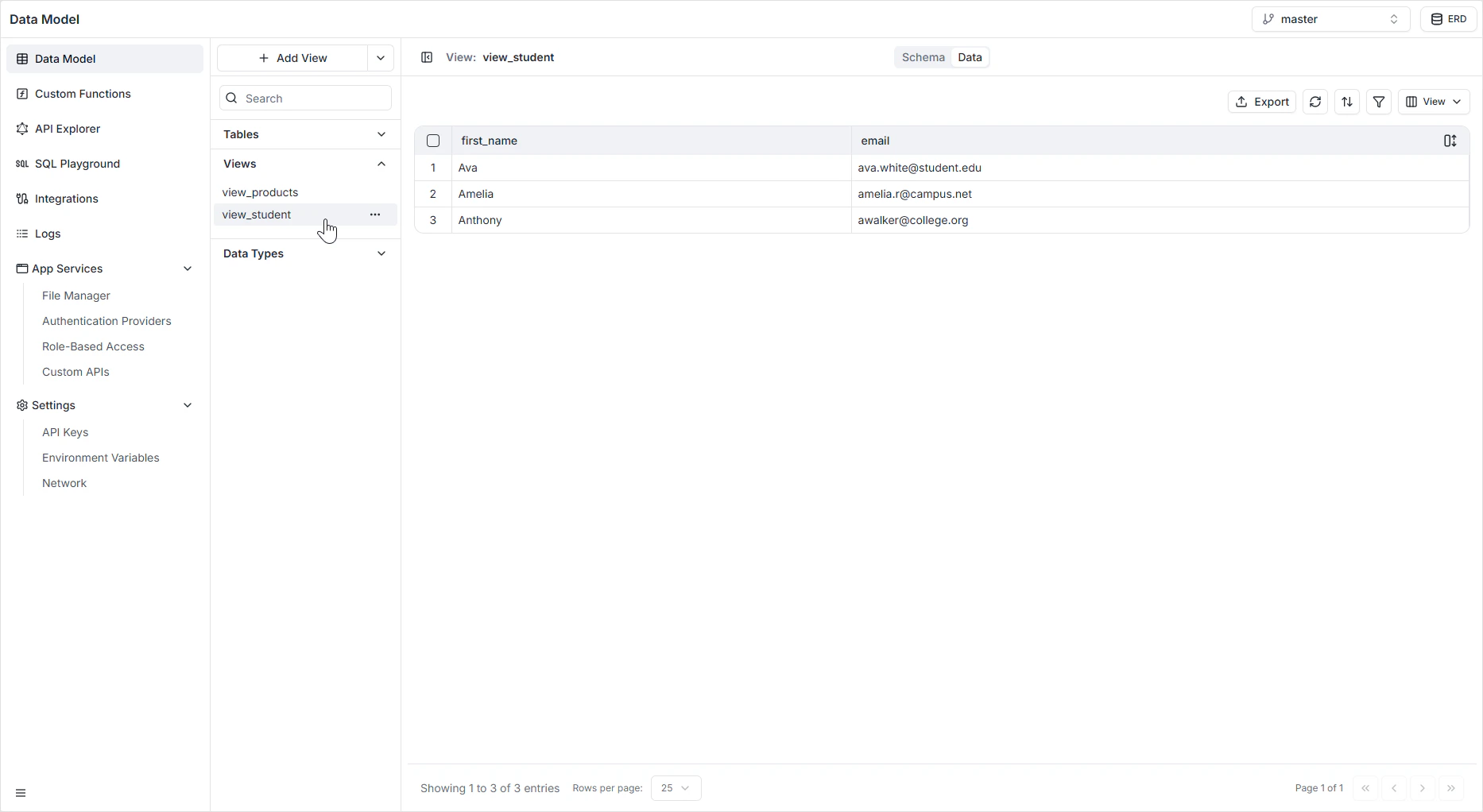
The view appears in the Views section of the sidebar and becomes immediately queryable.
Editing a View
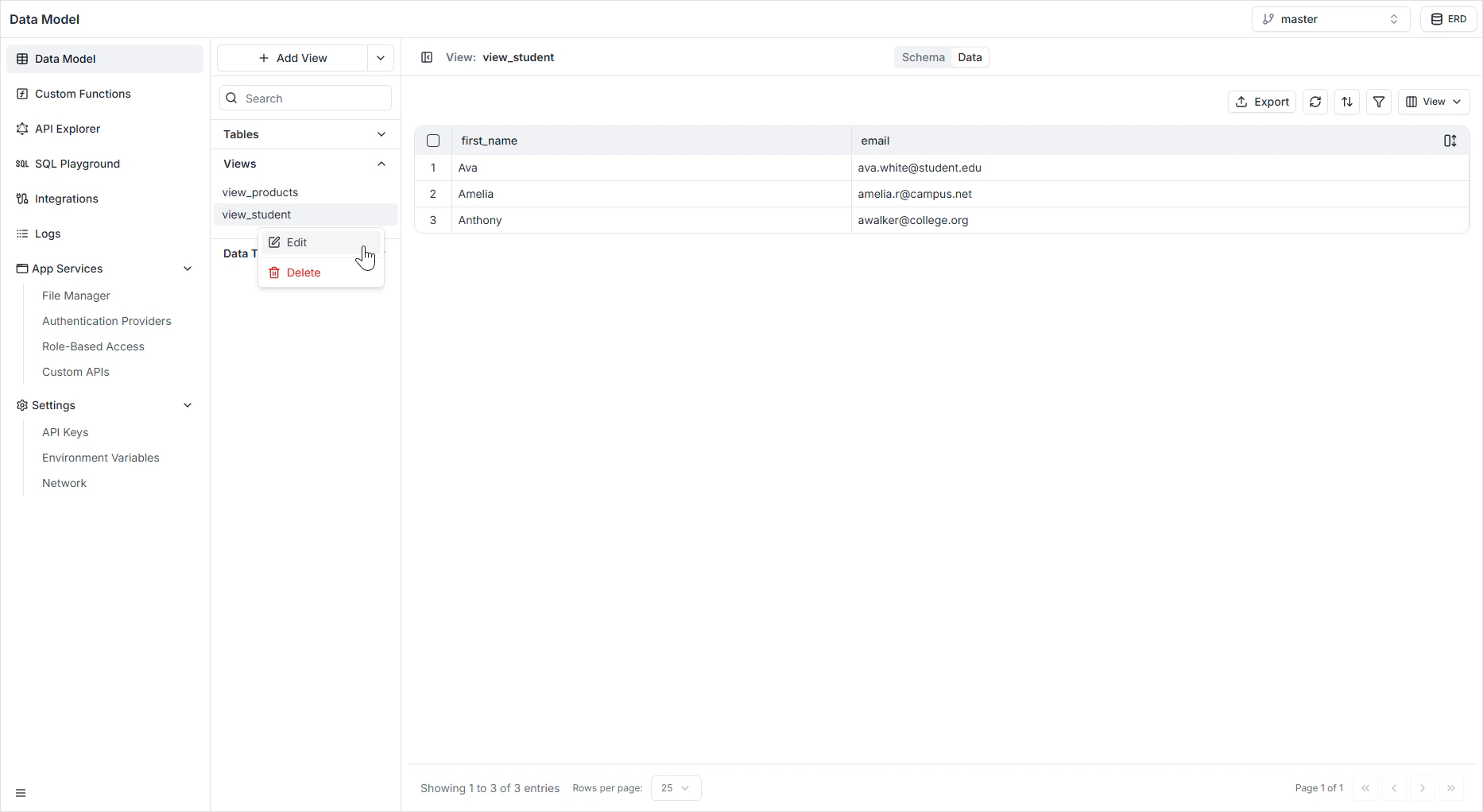
To modify an existing view’s query or description:- Open the Views section in the Data Model sidebar.
- Hover the view you want to edit and click the pencil icon.
- Update the SQL or metadata, run the query to verify, and save.
How it appears in the API
Each view is exposed in GraphQL as a queryable type with the columns from theSELECT clause. Because views are read-only by nature, the API surfaces queries — but not mutations — for them. See the GraphQL API Explorer to confirm the exact shape generated for your view.
Permissions
Views obey Role-Based Access. You can grant read access to a view independently of the underlying tables — that’s one reason to use a view to expose a sanitized projection of a sensitive table.FAQ
Are views read-only?
Are views read-only?
Yes. Views compute their result set from the underlying tables on every query, so they don’t accept inserts or updates through the auto-generated API. Mutate the underlying tables directly.
How do I get a calculated column without storing the value?
How do I get a calculated column without storing the value?
Define a view whose
SELECT includes the calculation — for example, SELECT id, first_name || ' ' || last_name AS full_name FROM users. Clients query the view and get the computed value without it ever being stored.Can I write a view that joins tables from multiple schemas?
Can I write a view that joins tables from multiple schemas?
Stick to tables in your project’s schema. The auto-generated API works against your project’s namespace, and cross-schema joins fall outside the supported surface area.
What happens to a view if I rename a column in an underlying table?
What happens to a view if I rename a column in an underlying table?
The view’s query may break. Edit the view to reference the new column name. Test by clicking the play button before saving — the editor will surface SQL errors.
Should I use a view or a custom function for complex reads?
Should I use a view or a custom function for complex reads?
Views are best for SQL-only logic that maps cleanly to a
SELECT. For logic that needs procedural code, third-party API calls, or complex authorization, write a custom function instead.